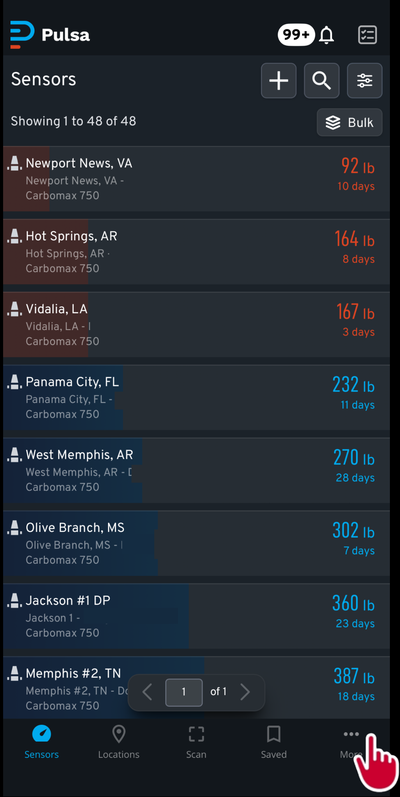
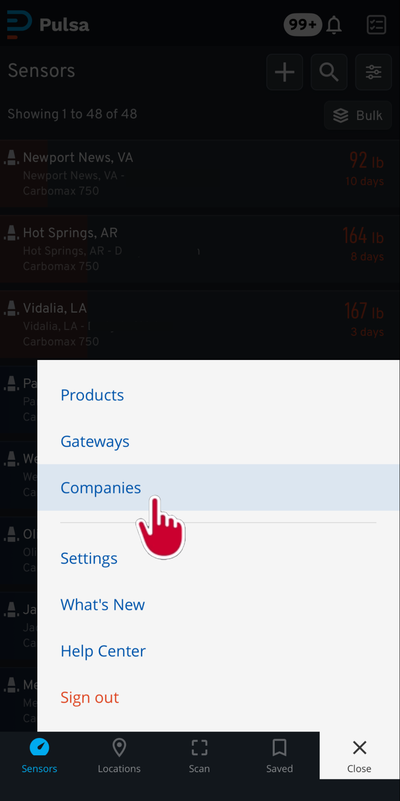
Want to see a bill or make a payment? Once you're logged in the Pulsa App or Dashboard follow these steps:
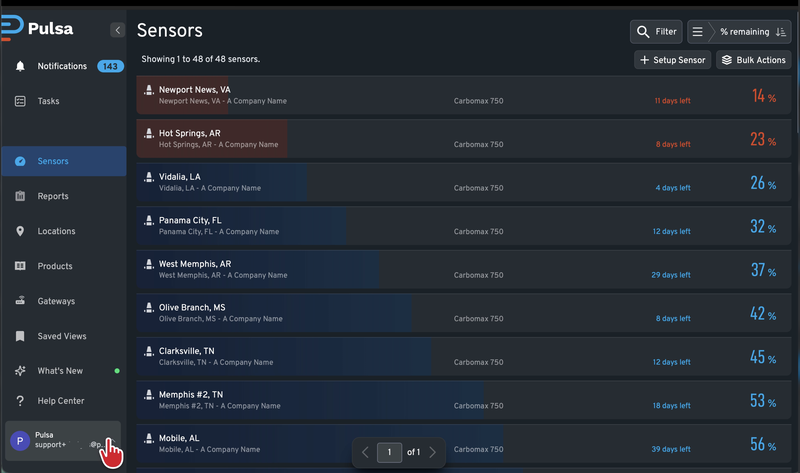
- Click your account icon in the bottom-left corner.
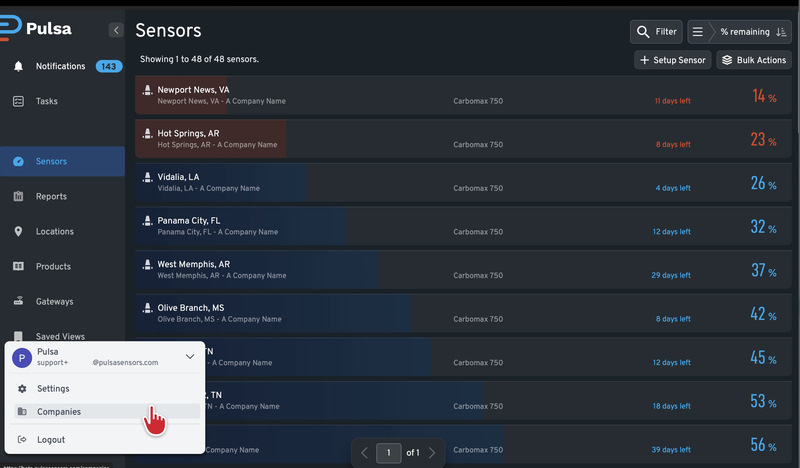
2. Click Companies in the menu that opens
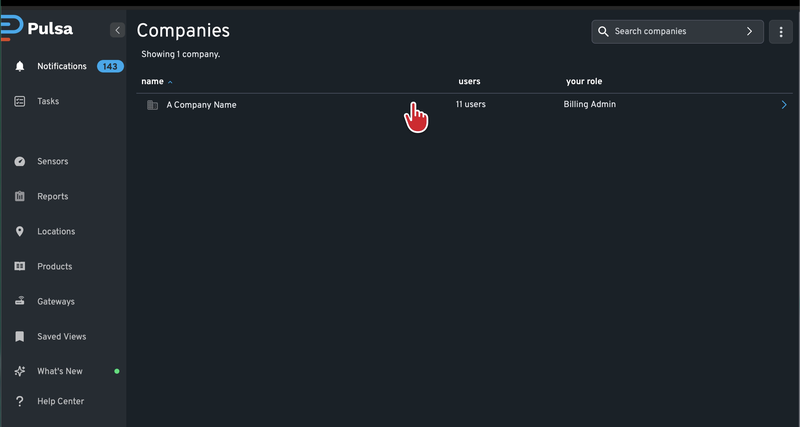
3. Click on your company's name.
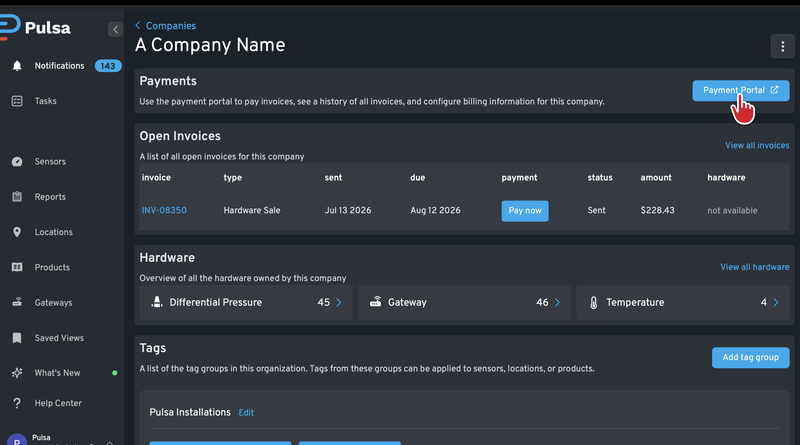
4. Click the blue Payment Portal button.
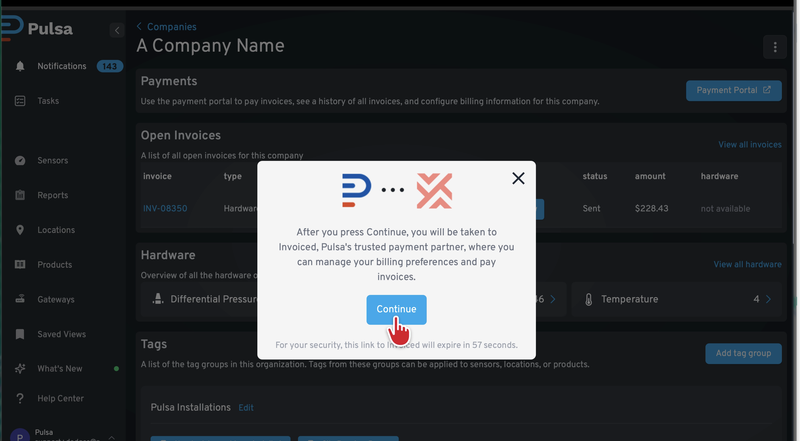
5. Click Continue on the pop-up window. This takes you to our payment partner, Invoiced.
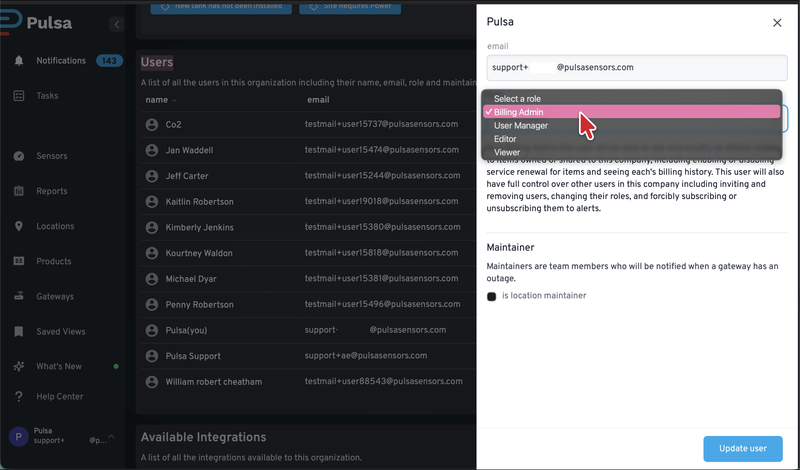
Note: Only Billing Admins can open the Payment Portal. Scroll down to the User Roles page to see your role
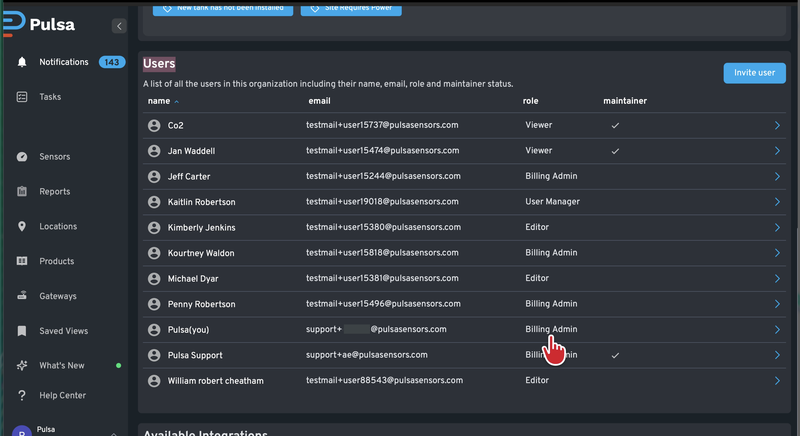
Contact your billing admin to change user role
On the App :
- Click on " more ... " on the bottom right
- Go into companies
- Click on the blue payment portal button as show above