

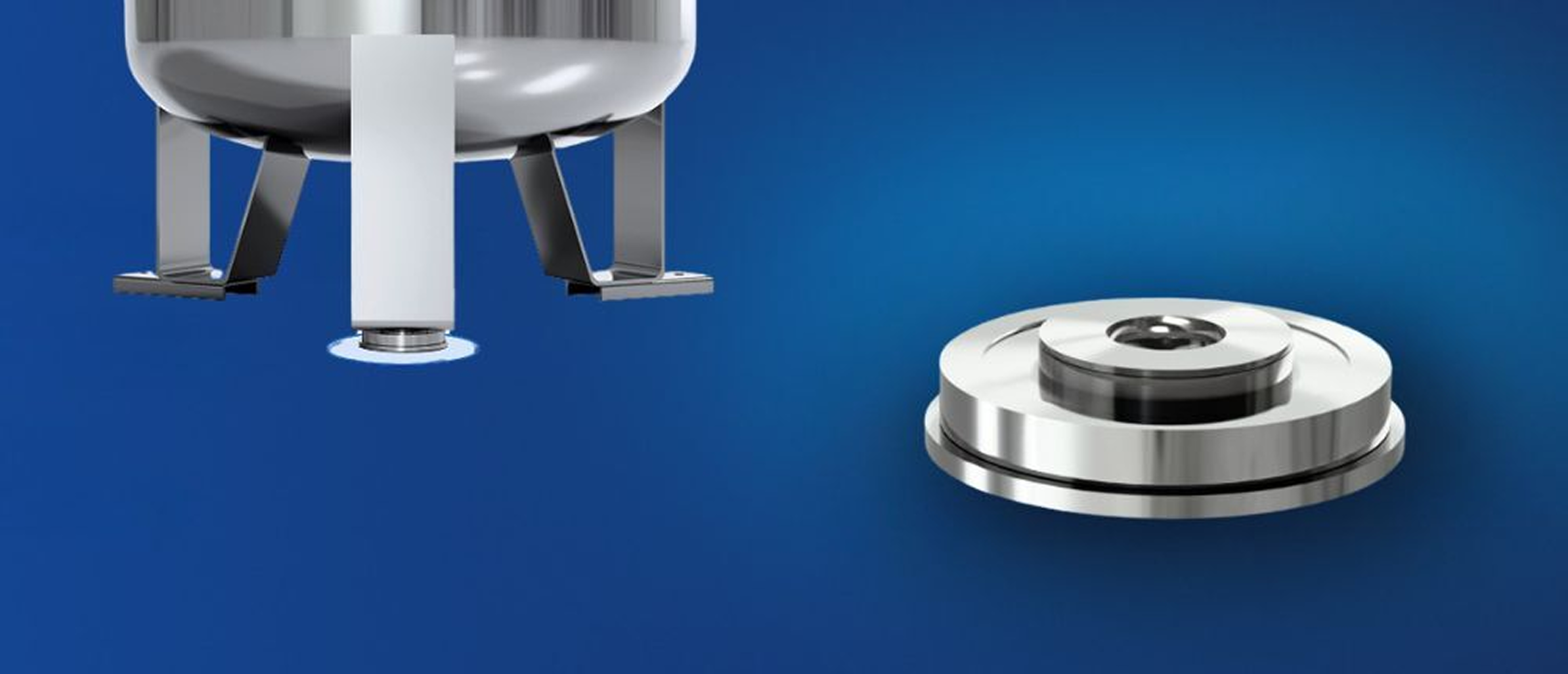
The Pulsa Puck Scale makes tank weight monitoring quick, accurate, and easy to manage. Follow this step-by-step guide to install your Puck Scale and connect it to your Pulsa system.
The Puck must be installed on smooth, level, and uniform surfaces. Installing the scale on uneven or unlevel ground may lead to inaccurate readings and potential installation issues.
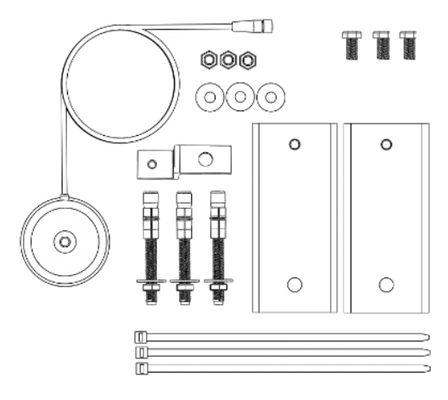
What’s in the box
Your Puck Scale kit includes:
- (1) Puck load cell
- (2) C-channels
- (1) Z-bracket
- (3) 3/8” x 0.75” bolts
- (3) 3/8” concrete anchors
- (3) 3/8” hex nuts & washers
- (3) Zip ties
Physical Installation Steps
Register and Power On Gateway
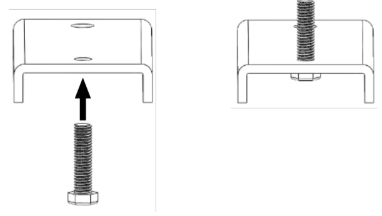
Thread 3/8” bolts into C-channels
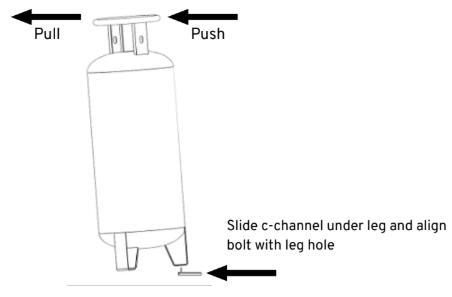
Tilt tank & slide C-channels under 2 legs
Finger tighten nut on C-channel bolts
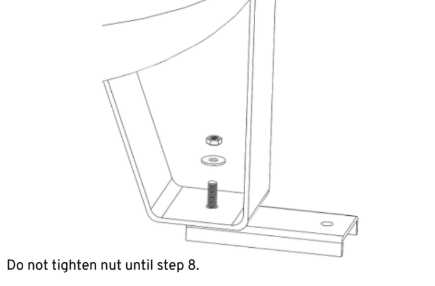
Place puck on 3rd leg
Finger tighten bolt to locate Puck. Do not over-tighten. Position so cable runs under the center of the tank. You will zip tie cable to the inside of leg.
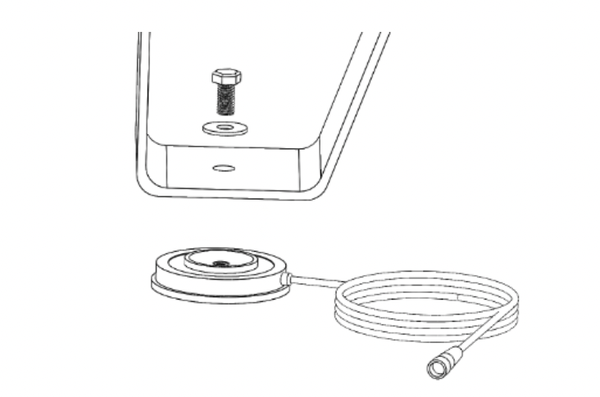
Ensure puck is on a flat surface
Ensure Puck does not span a crack or low spot. Slide or rotate tank to reposition If placed on tile, center Puck in middle of tile.
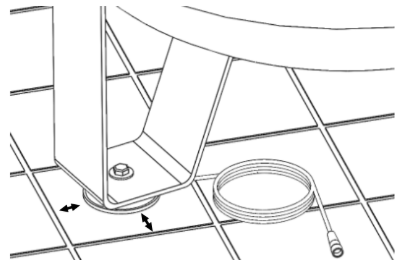
(Optional) Set anchor bolts for both C-channels*
Mark hole & rotate C-channel to drill hole. No need to move tank.
*Securing the system to the ground is not required. Check local regulations for requirements on securing the tank.
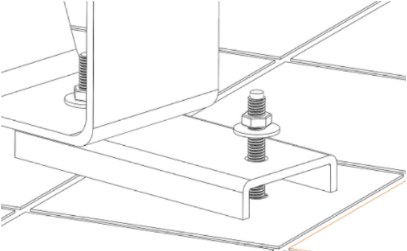
Tighten nuts onto C-Channel bolts
Do not over-tighten. 1/2 turn past finger tight is sufficient.
Over-tightening can cause less accurate readings.
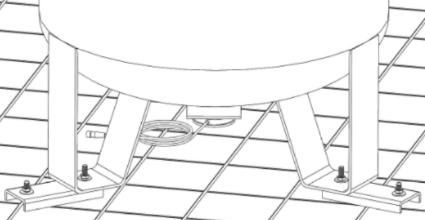
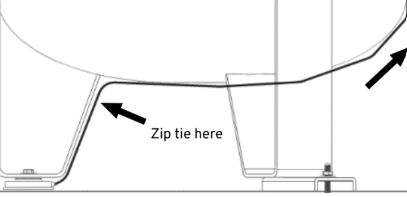
Route Puck cable inside of leg and up
Route cable inside of leg, under tank and up the opposite side of the tank to the Pulsa Link or Frontier device. Zip tie cable to inside of leg.
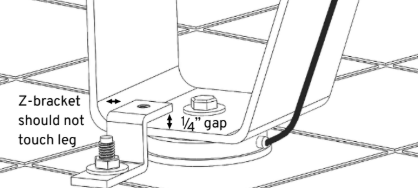
(Optional) Place Z-bracket and set anchor bolt
Z-bracket should not physically touch the tank leg. There will be a
small gap between the top of the leg and the Z-bracket.
Use the Pulsa app to scan QR code on Pulsa device and follow the setup wizard
Use the Scan button or the "+ Add" icon on the sensors list page to scan or enter the Pulsa Puck Sensor ID and serial number - then follow the steps to register the puck on the Dashboard.
Enter the empty container weight (e.g. tank tare weight) of the asset you'll be tracking.
Include the weight of any additional accessories or hardware that would be included in the total weight but should NOT be included in the trackable contents weight, or what we consider the product's full size. This may include items like hoses, safety rings, etc.
Your puck sensor will need to have a product assigned to it in order for Pulsa to know what's considered full and empty.
Select a pre-created product or create a new product from scratch.
The product name should be clear and descriptive, e.g. "Chart 750lb CO2".
The empty size should be zero unless unique conditions are required.
The full size should be what the container holds at 100% full.
Once complete, hit save to confirm and assign your product to your puck.
Your Puck should begin reporting within 3-5 minutes of completed setup.
Troubleshooting
If your puck displays as missing on the dashboard, or measures are not being received as often as expected:
- Confirm the gateway or frontier your puck is connected to is powered, and displaying as online in the dashboard
- If using a standard Puck and gateway system (non- frontier), ensure the Puck is in clear line of sight from the gateway, removing any obstructions if possible.
Puck values should be exact or very close to current tank levels. If your Puck displays measures that are inaccurate or unexpected:
- Confirm current asset levels
- Review Puck measurement breakdown by clicking the "Measurement Details" text on the puck's details page. Confirm the gross weight and container weight are as expected.
- If the gross weight is incorrect, review the puck installation. Pucks may read inaccurately if:
- Puck hardware is excessively tightened
- Puck hardware is on an uneven, non-level surface
- the weight placed on the puck is unevenly distributed i.e. check for gaps and or lifting on any of the tank's feet
- If the Puck's container weight is incorrect, update the container weight under the Puck's "Manage" panel.
- If the gross weight is incorrect, review the puck installation. Pucks may read inaccurately if:
For questions or troubleshooting assistance, contact Pulsa Support.